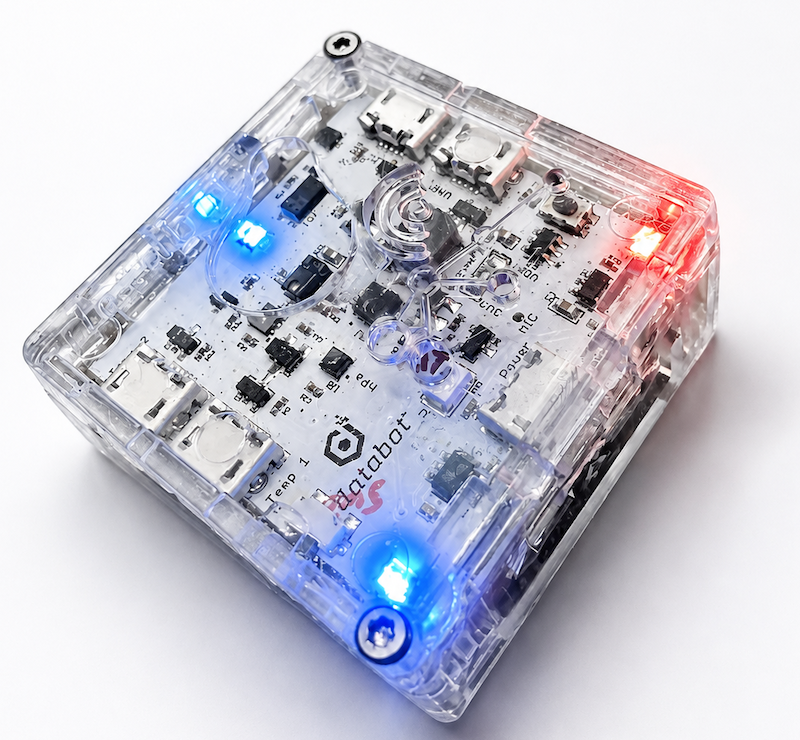
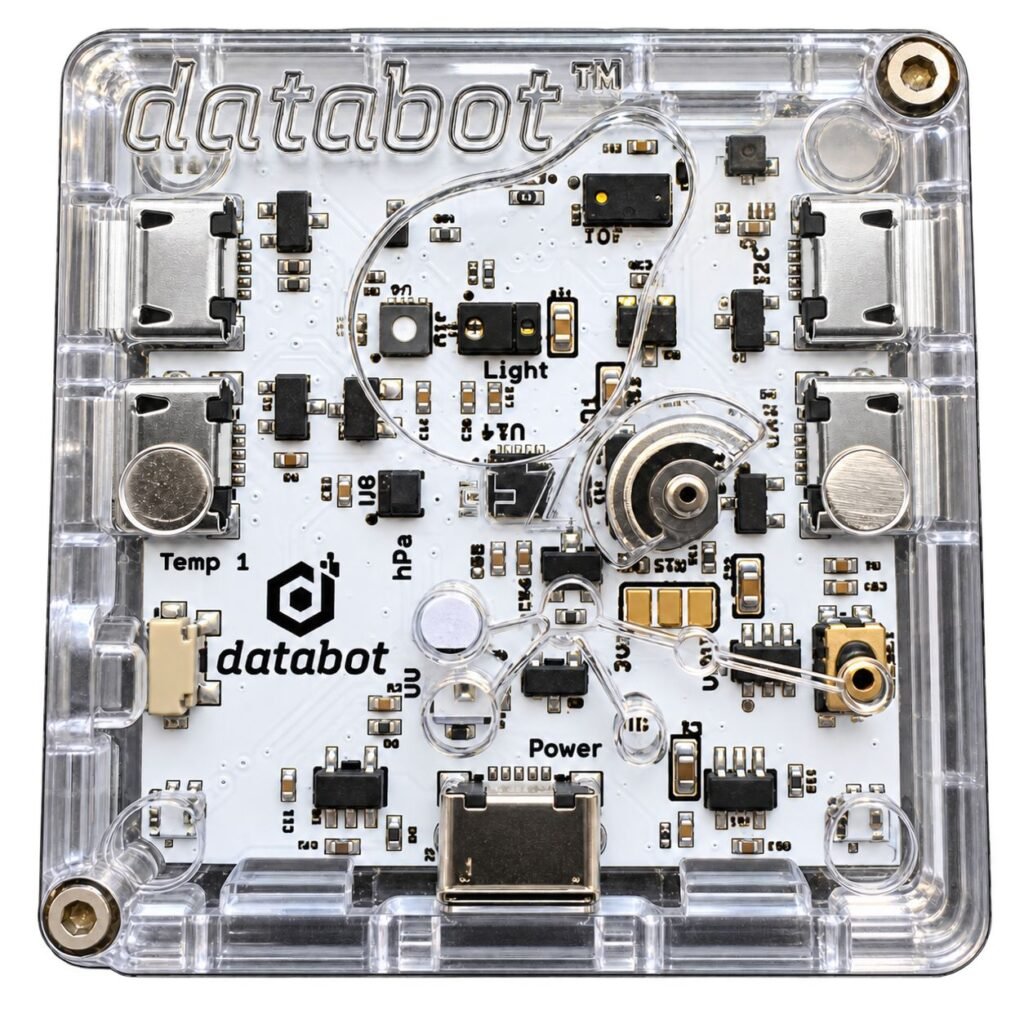
Firmware is the set of instructions loaded into Databot’s memory that defines it’s behavior with software like Vizeey. Using our default firmware, Databot recognizes incoming requests from Vizeey, CODAP, and a number of other platforms and responds appropriately.
System Check and Updating Firmware
Team Databot regularly improves and enhances Databot firmware to add more functions and improve performance so you may need to update your firmware from time to time. When you first purchase Databot or at the beginning of the school year are both good times to check. Updating is simple and takes just a few minutes. Follow these steps.
First, using Vizeey, check your firmware status using the System Check experiment in System Tools as shown. If you have not installed System Tools or gone through your initial setup with Databot, go to setup and do it first.
System Check will run a quick light and sound show to check the status of your onboard LEDs and tone generator, and display current details on Databot’s status.
Next, look for the Install button on this page for your version of Databot (v2 or v3) which will display the latest firmware version below it.
If your firmware version is lower than the current release, it is recommended you update.
Run System Test to check lights, sound, and more.
Updating Your Firmware
How to Update
Using this simple online tool (no need to install software) you can connect directly to Databot and flash new firmware to it.
Using a Chrome or Edge browser, plug Databot in to your computer or Chromebook and make sure it is turned on.
The most recent firmware version will be displayed in the drop down menu.
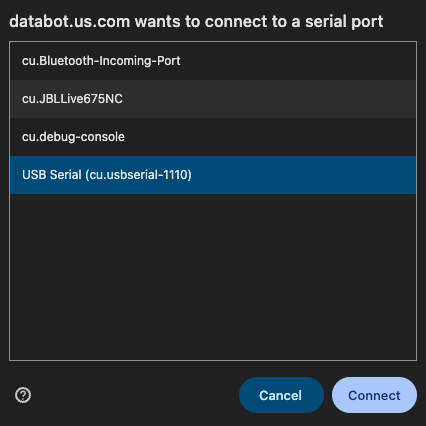
Click Install and look for the device window popup – Databot will show as a COM port or a USB Serial device depending on whether you use Windows or MacOS.
Confirm installation messages
It takes less than 2 minutes for the update, leave your browser window open.
Troubleshooting
If Databot is not being recognized, you may need to check with IT to ensure your USB ports are not disabled for administrative purposes.
Internet access is required for this process to work, check for firewalls.
Test with another device – you can update using Chromebooks, Windows, and Mac systems.