Step 3 — The Connection Secret: Same Wi-Fi Network
To ensure a free, low-latency, and high-speed connection, follow this one vital rule:
Important: Ensure both your mobile device (running Vizeey) and your computer (receiving the cast) are connected to the same local Wi-Fi network. This allows for a direct, high-performance “Local Cast” connection.
Step 4 — Launch the Stream
Open AirDroid Cast on your phone.
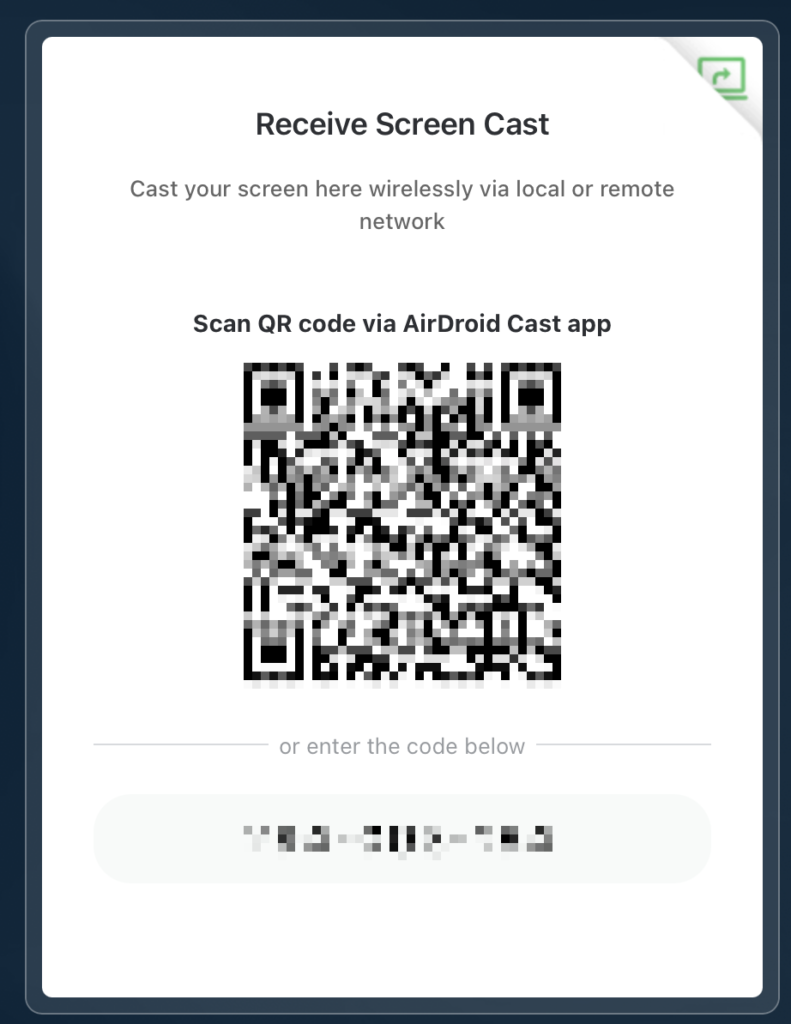
Scan the QR code displayed on your computer screen or enter the 9-digit code manually.
Tap “Allow” on your computer and “Start Now” on your phone to begin mirroring. Your screen is now live!
Step 5 — Data Visualization
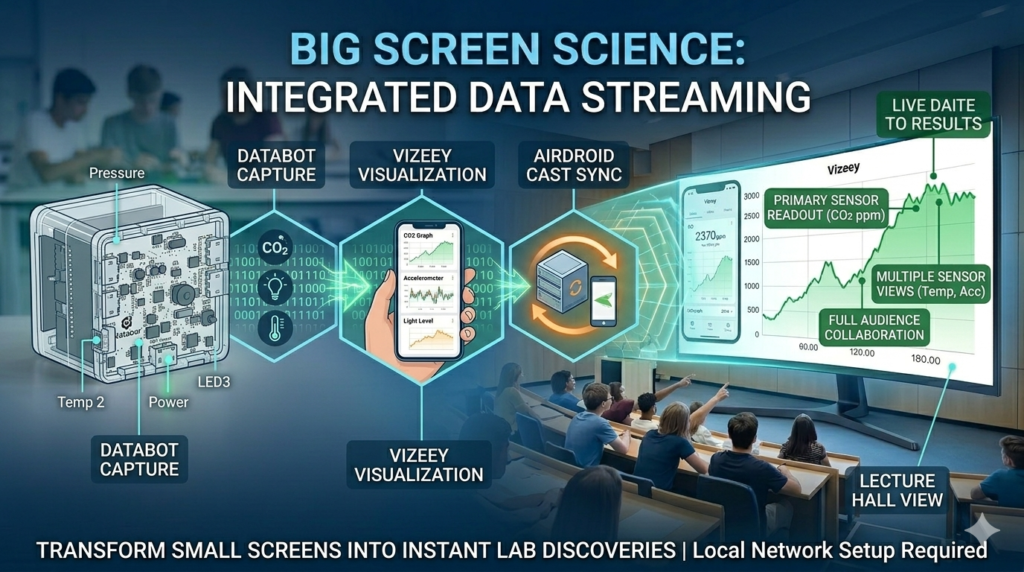
Now that your screen is mirrored, open Vizeey™ and start your experiment:
Select your sensor (e.g., CO2, Accelerometer, or Temperature).
Connect to your databot.
Press the Play button (>) — and watch as your live data spikes and dips appear instantly on the big screen for all to see.