Big Screen Science: databot, Vizeey & AirDroid
Introduction: Breaking the Small Screen Barrier
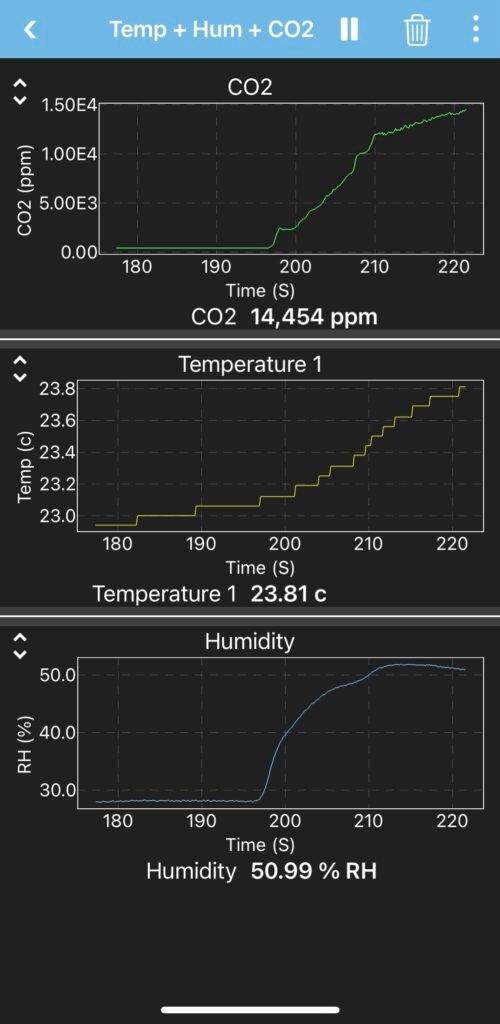
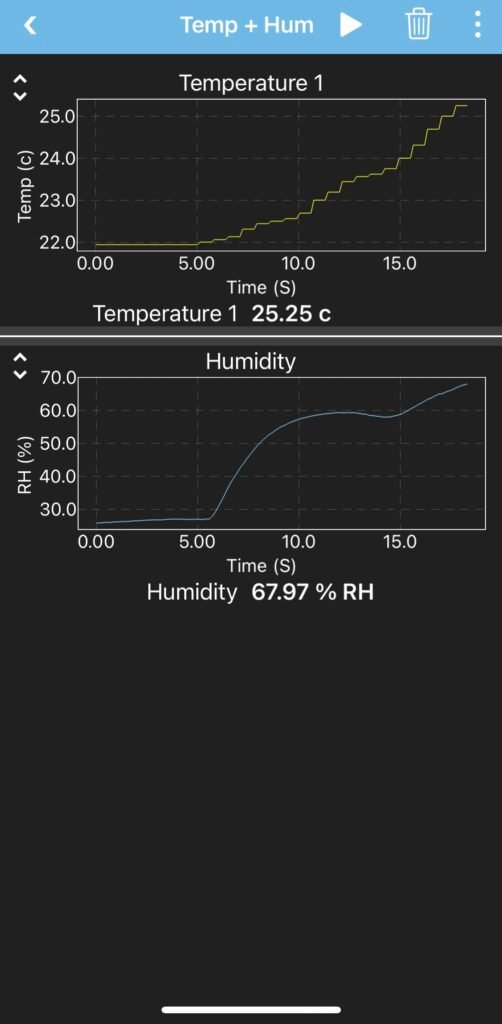
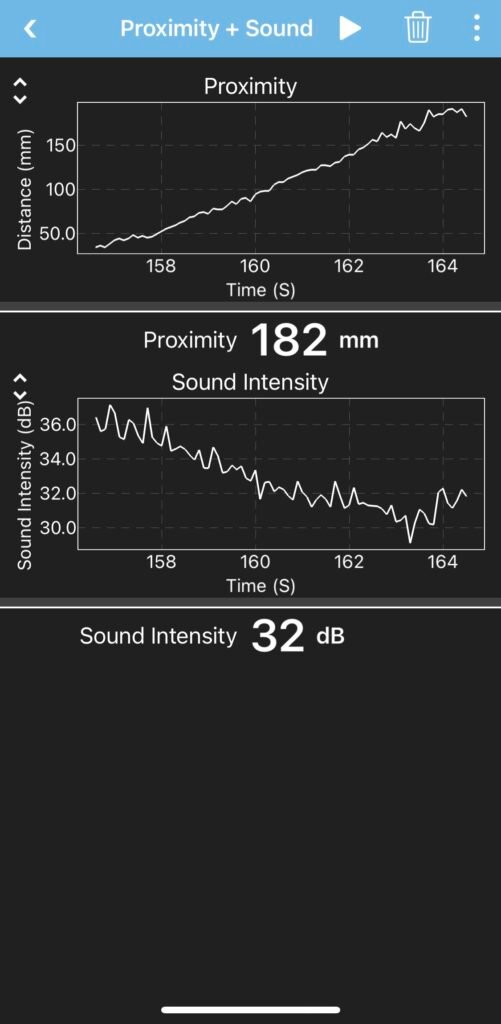
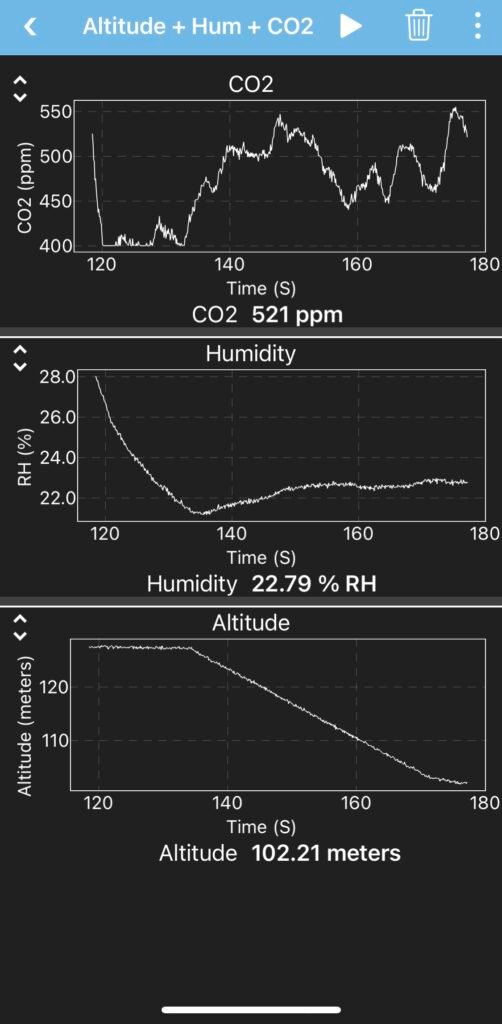
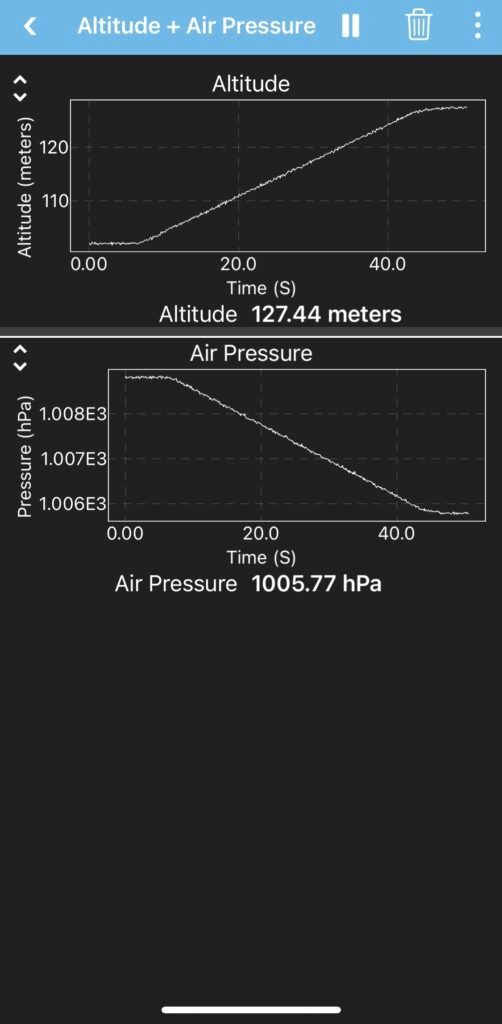
Databot is a powerhouse of STEM education, packing sixteen different sensors into a tiny, robust cube. Whether you are measuring CO2 levels, mapping magnetic fields, or calculating acceleration, the real-time data visualization provided by the Vizeey™ app is what brings these invisible scientific concepts to life.
However, there is a common challenge for educators and researchers: visibility.
While the Vizeey app works seamlessly on smartphones and tablets, these small screens are not ideal for a classroom of thirty students or a collaborative lab environment. Currently, there is no native “Direct-to-PC” or “Direct-to-TV” live streaming feature for databot. This limitation can turn a dynamic group experiment into a “huddle around one phone” session, which reduces engagement and makes it harder to analyze complex graphs collectively.
The Solution: Creating a Real-Time Data Bridge
To solve this, we are introducing a simple yet powerful workflow using AirDroid Cast. By mirroring your mobile device’s screen directly to a computer or projector, you can transform a personal data-collection session into a Big Screen Science experience.
In this blog, we will walk you through the exact steps to bridge the gap between your databot and your desktop. By the end of this guide, you will be able to:
- Collect high-speed sensor data via the Vizeey app.
- Broadcast that data wirelessly to any PC or Mac in real-time.
- Ensure your entire audience can follow every spike and dip in the data as it happens.
Preparing the Hardware & Software Ecosystem
Before we can broadcast your data to the big screen, we need to ensure your “Data Pipeline” is ready. This setup relies on three main components working in harmony: the databot hardware, the Vizeey™ interface, and the AirDroid Castbridge.
1. The databot Firmware
To ensure seamless communication, your databot must be running the standard factory firmware. This is the default software that allows the device to “talk” to the Vizeey app via Bluetooth.
Pro Tip: If you are new to the ecosystem or have previously flashed custom Arduino code onto your device, we highly recommend revisiting the official setup guides to restore the base functionality:
2. The Data Collector: Vizeey™ App
Ensure the Vizeey™ app is installed on your smartphone or tablet (available on iOS and Android). This app acts as your mobile laboratory, receiving raw sensor data and converting it into live, readable graphs.
Action: Open Vizeey and confirm you can connect to your databot and see live data (e.g., the Accelerometer or CO2 sensor) on your phone screen.
3. The Broadcast Bridge: AirDroid Cast
Now, for the “missing link.” Since we cannot plug the databot directly into a PC for real-time Vizeey visualization, we will use AirDroid Cast.
Download: Install the AirDroid Cast app on the same phone/tablet that is running Vizeey.

4. Establishing the Connection (The "Local Network" Secret)
To ensure the best performance and—most importantly—to use the software completely for free, there is one vital rule to follow:
Important: Stay on the Same Network > Both your smartphone (running Vizeey and AirDroid Cast) and the computer receiving the data must be connected to the same local Wi-Fi network.
Why is this important?
Zero Cost: AirDroid Cast allows free local screen mirroring when both devices share the same IP network.
Low Latency: Being on the same network ensures the fastest possible data transfer. This means the graphs your students see on the big screen will match the databot’s movements in real-time without annoying delays.
No Subscription Required: If the devices are on different networks (e.g., phone on 4G/5G and computer on office Wi-Fi), the software will require a paid premium version to bridge the remote connection.
Before moving to the next step, double-check your Wi-Fi settings on both devices!
5. Launching the Broadcast
Now that we are on the same network, it’s time to go live.
On your Computer: Open the AirDroid Cast Web version in any browser (Chrome, Safari, or Edge) or launch the desktop application. A QR Code and a 9-digit Cast Code will appear on the screen.
On your Phone: Open the AirDroid Cast app and either scan that QR code or type in the 9-digit code.
Permissions: Tap “Allow” on your computer and “Start Now” on your phone to begin the stream.
6. Conclusion: Science is Better Together
By successfully creating this data-driven bridge from databot to Vizeey and onto the big screen with AirDroid Cast, you’ve done more than just mirror a phone; you have fundamentally changed how data is shared in a educational or collaborative environment.
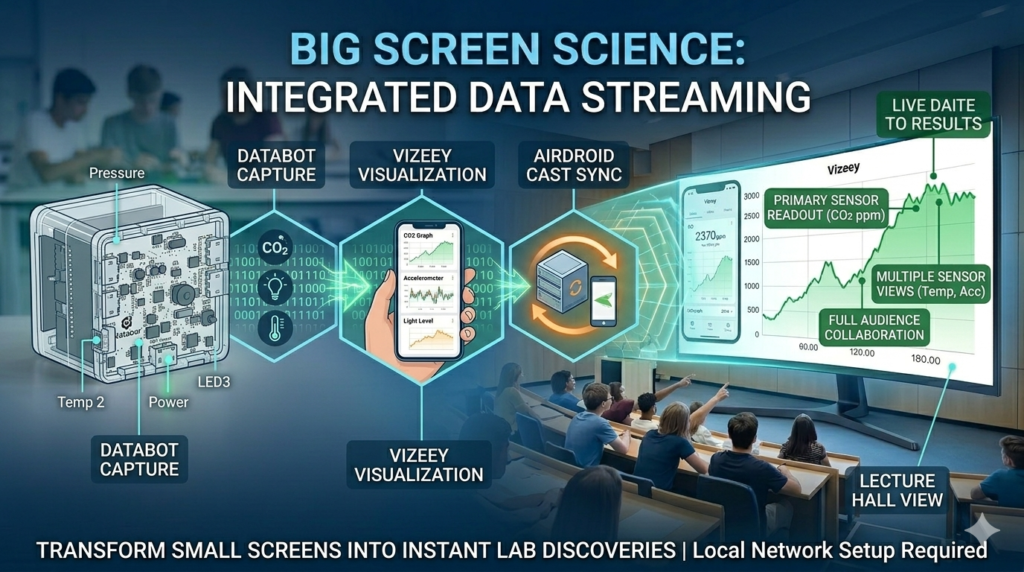
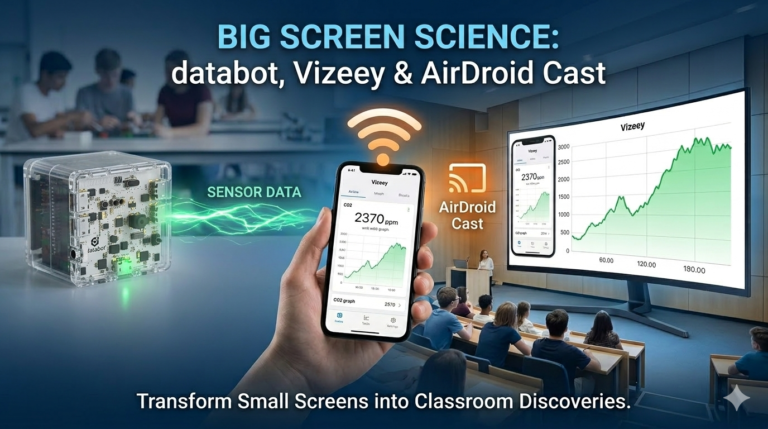
Now, you aren’t just one person holding a sensor—you are leading a real-time scientific discovery for the whole room. As shown in our Big Screen Science banner, you now have a complete setup: the databot gathers the data, the Vizeey app visualizes it, and AirDroid Cast broadcasts it instantly to your classroom screen.
No more huddling around a phone. Now, every student can watch the live data spikes and experiment results as they happen, right on the big screen.